Mobile Workflow
Journal global options apply to all screen sizes unless breakpoint rules or device status are specified. Below you will find information on how to customize options and layouts for different screen sizes or different device types.
Breakpoint Rules
Journal comes with a cutting-edge feature called Breakpoint Rules allowing you to change any supported option's values on different screen widths. Everywhere you see the green + button on the far end of an option, that is the Breakpoint rules feature.

Simply add Breakpoint rules for any option and indicate a different min or max screen width at which to change the option's value.
Quick rundown
- Add breakpoint rule.
- Indicate screen width at which to change the option. You can use a predefined breakpoint variable (defined in Journal > variables > Breakpoint) or type a custom value to indicate a minimum width or a maximum width as a trigger for the option change. Min width will apply the option above that screen width and max width will apply it below.
- Simply change the option however you need, will apply at indicated min or max width.
- Remove the breakpoint rule or add more from green plus button.

Mobile Header
There are 3 different types of dedicated mobile headers found in Journal > Header > Mobile Header x. Each header contains core header elements such as Main Menu, Cart, Search, Top Menu, Language and Currency.
See a video guide (timestamp 31:12) on how mobile headers work in Journal.
- Create one or more mobile header modules and customize them as desired. Unlimited instances of each of the 3 different mobile header modules can be created and each can have completely different styles or load completely different menu modules.
- The Main Menu module transfers automatically into the mobile off canvas container, called Mobile Wrapper. However, each mobile header has the option to load a completely different main menu module so feel free to create different menu modules for mobile if so desired. Or you can keep the same menu module but selectively enable/disable individual menu items for each device.
- Top Menu does not get transferred automatically and it must be chosen manually inside the mobile header in Journal > Header > Mobile Header x > Top Menu > Top Menu Module. It's recommended to not use the same Top Menu module from desktop if it has too many menu items. Create a separate Top Menu module with only the essential menu items such as Login and Register which properly fits within the top bar of your mobile header.
Device Status
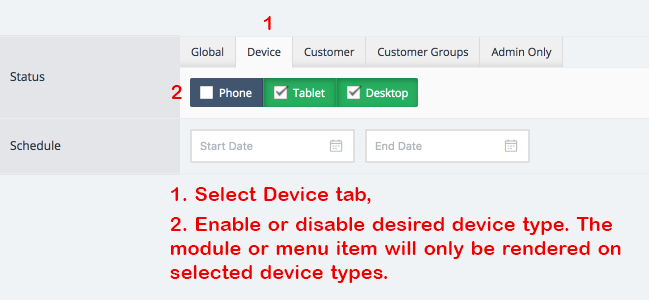
Journal 3 employs optional dedicated mobile layouts. This is available wherever the advanced Status option can be found. That is in all modules (sliders, blocks, banners, etc.), entire menu modules or individual menu items, builder rows and columns, etc.
By default, modules and menu items are rendered on all devices (Phone, Tablet, Desktop) but it's important to note that one can leverage the option to create specific modules for specific use cases for best performance across all devices.

Modules
It is highly recommended to create lighter modules for phones for optimum performance. For example you may have a Slider module or large menu system which works well on desktop but is quite heavy or doesn't look as desired on phones. In such cases you can disable these modules on phones and/or tablets via the Status option found in every module and create separate instances of each module which in turn are disabled on Desktop and enabled on Tablet or Phone via the same Status option.
Make sure to use actual mobile devices when testing dedicated mobile layouts as module status is device-specific. In other words don't just resize the desktop browser to see the device specific modules, you need an actual mobile user agent. If you don't have a mobile device handy you can use the Chrome desktop browser
