Demo Import
Import steps
-
Access the Journal demo you want to import from our demos landing page.
-
Visit that demo's admin panel by adding "admin" in the address bar and log in with username demo and password demo. (Each demo has its own admin panel so ensure the desired demo number is reflected in the url.)

-
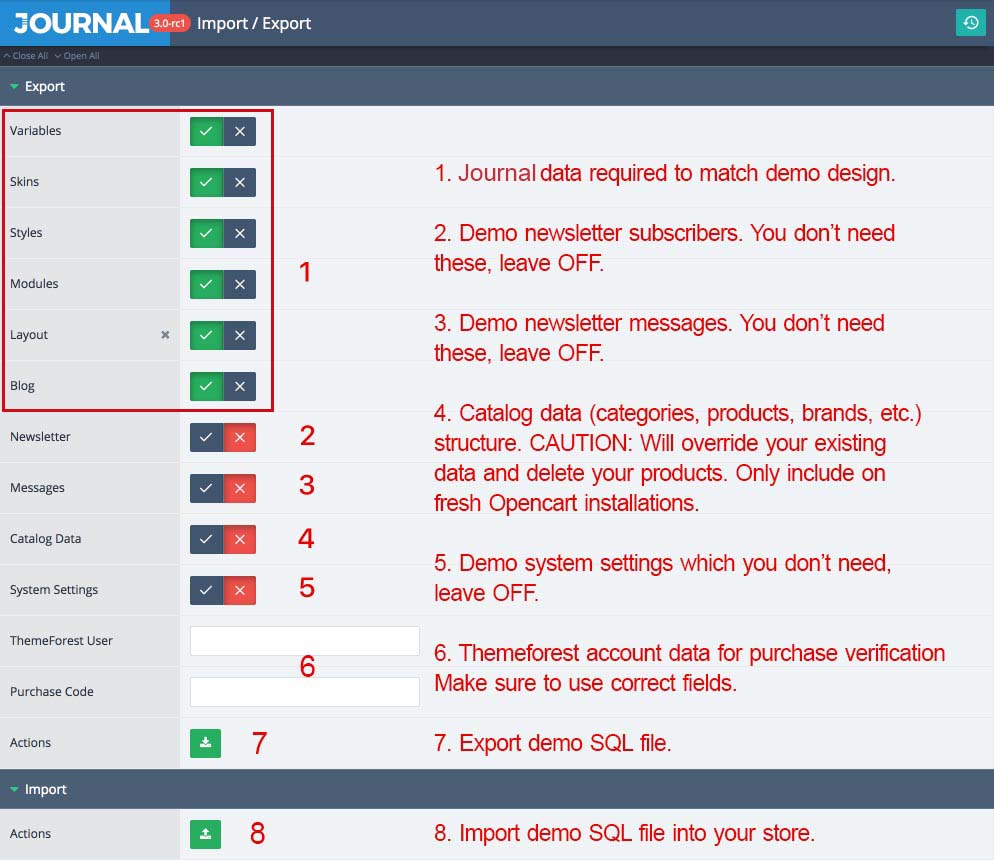
Navigate to Journal > System > Import / Export, click the Export button and an SQL file will be downloaded.
 .
. -
Go to your store admin page and access the same page Journal > System > Import / Export.

-
Click the Import button and choose the exported file from step 7 above.
-
Access your storefront and you should have the same demo structure.
Do not include demo Catalog Data on existing stores with products and categories already created as this will overwrite your data. Only use this option on new setups.

Do not include demo System settings because it will serve static assets from our demo server and that will break assets loading (css/js/images/etc.) on your own setup so always leave this setting OFF.
Not all images used in our demos are included in the package. If you see missing images in your demo import, it's not an error, it means they are not included.
Video tutorial
Demo import is covered in the last part of the video, beginning at 3:00. The video is made on the previous Journal 3.1 version but is essentially the same admin and workflow in Journal 3.2.